
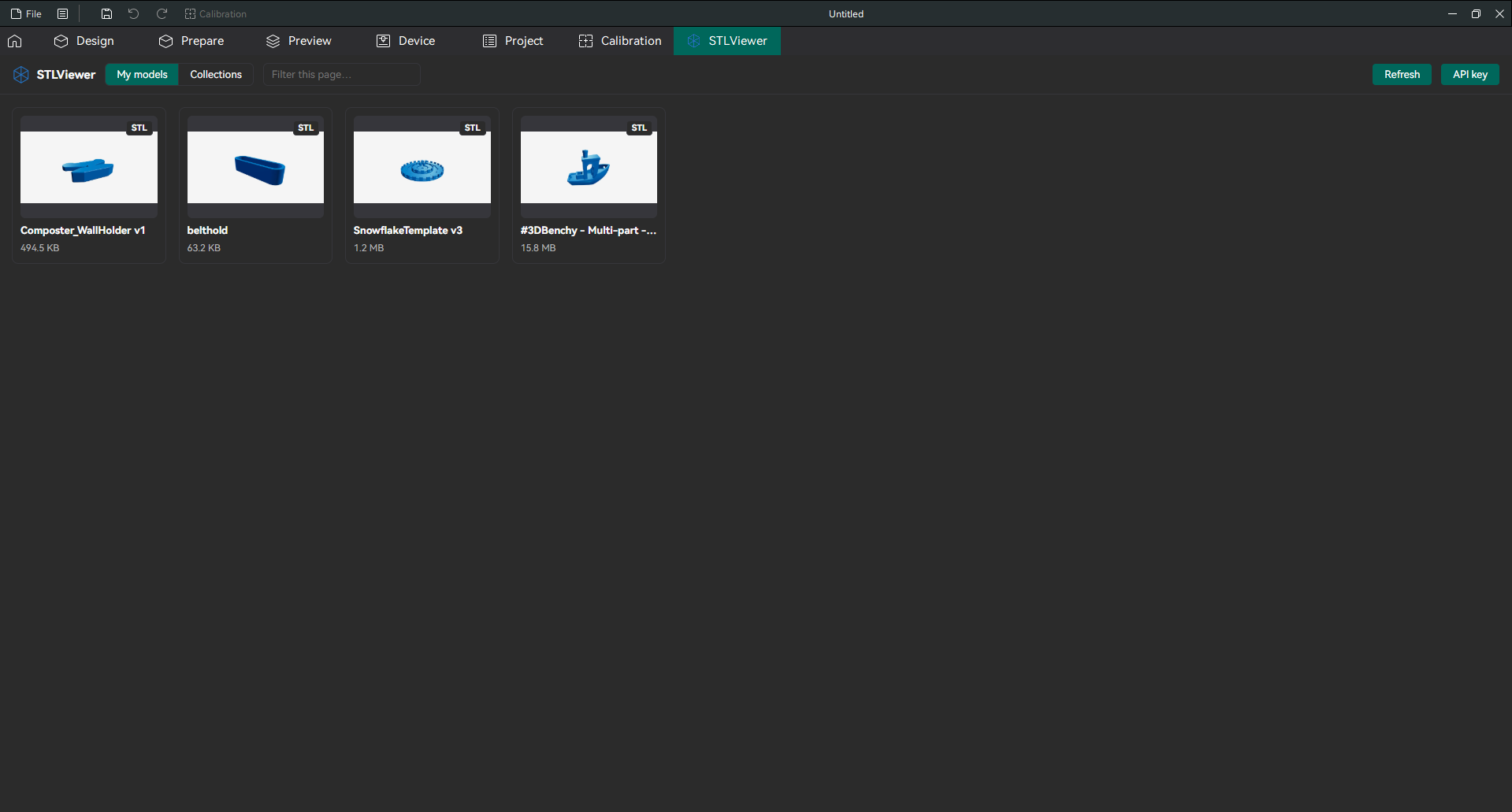
The STLViewer Library plugin adds an STLViewer tab to OrcaSlicer with your STLViewer models and collections, so you can print them without leaving OrcaSlicer. Click a model and it goes straight onto the plate, ready to slice.
The plugin is free and published on the OrcaCloud Plugin Hub, OrcaSlicer's official home for plugins. This guide is written for people who have never installed an OrcaSlicer plugin before. Setup takes about 10 minutes, and you only do it once.
What the plugin does
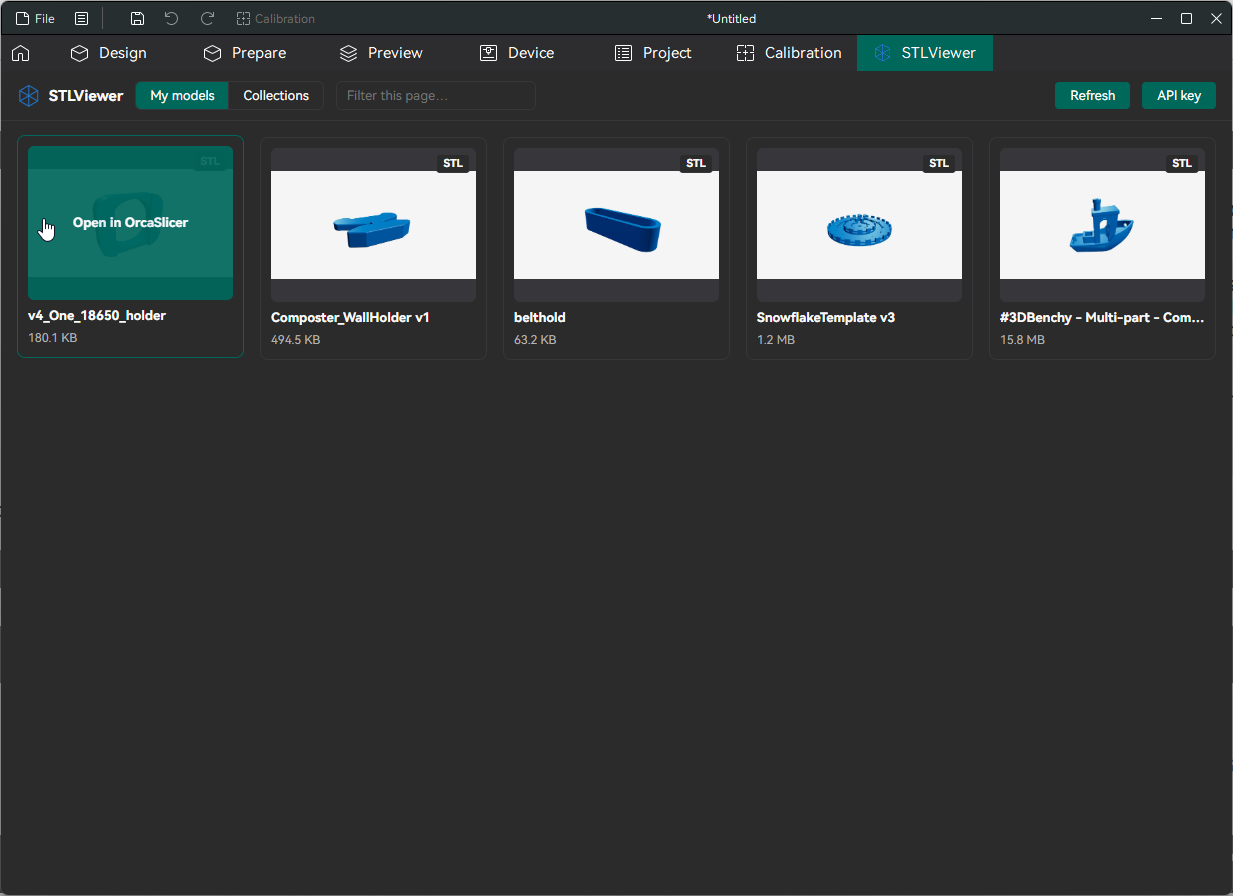
- Shows the models you've uploaded. Your models appear as cards with a picture, a format label (STL, 3MF or PLY), the name and the file size, in a new tab next to Prepare, Preview and Device.
- Opens a model with one click. The plugin downloads the file in the background and hands it to OrcaSlicer, so you skip the trip through your browser and Downloads folder.
- Shows your collections. Open one of the collections you've put together to see its models, then open any of them the same way.
- Only reads your account. The plugin lists and downloads your models. It never changes, renames or deletes your models, collections, share links or comments.
Slicing and printing still happen in OrcaSlicer, exactly as before.
The plugin or the "Open in OrcaSlicer" button?
There are two ways to get a model from STLViewer into OrcaSlicer: the plugin for your own models, and a button on the model page for the people you share a model with.
| STLViewer plugin | "Open in OrcaSlicer" button | |
|---|---|---|
| Who it's for | You, for the models you've uploaded | Anyone you send a model link to, such as a client or a friend |
| Where you use it | Inside OrcaSlicer, in the STLViewer tab | On the model page in a web browser |
| Which models | Your own models and collections | The shared model on that page, if its owner allows downloads |
| Account needed | Yes, plus an API key | No |
| Setup | Install once from the Plugin Hub (this guide) | None |
So when you share a model with someone who prints with OrcaSlicer, they don't need the plugin: the button on the page you sent them is enough, as long as you allow downloads for that model.
What you need before you start
- OrcaSlicer with plugin support. The plugin system is new. It's included in OrcaSlicer releases newer than 2.4.2 and in the nightly builds. To check, click the menu button with three lines, right next to File in the top-left corner of OrcaSlicer. On a Mac, open the File menu in the menu bar instead. If you see Plugins there, you're ready. If you don't, update OrcaSlicer first.
- An OrcaCloud account. OrcaSlicer installs and updates plugins from the OrcaCloud Plugin Hub, and you need to be signed in to use it. It's the same account OrcaSlicer uses to sync your printer, filament and process profiles. If you don't have one yet, you can create it on the Hub's sign-in page with an email address, or continue with Google, Apple or GitHub.
- An STLViewer account with at least one model you've uploaded while signed in. The tab shows only the models in your own account. Models uploaded without signing in don't belong to any account, so they won't show up.
- An internet connection while you browse and open models.
Step 1 — Subscribe to the plugin on the Plugin Hub
Plugins reach OrcaSlicer through your OrcaCloud account. When you subscribe to a plugin on the Plugin Hub, it's added to your account, and every OrcaSlicer signed in to that account can install it. Subscribing to STLViewer Library costs nothing.
- Open the OrcaCloud Plugin Hub in your web browser.
- Sign in to OrcaCloud. No account yet? Click Create account, or continue with Google, Apple or GitHub.
- Find STLViewer Library in the list of plugins. Searching for "STLViewer" is quickest.
- Open it and subscribe.
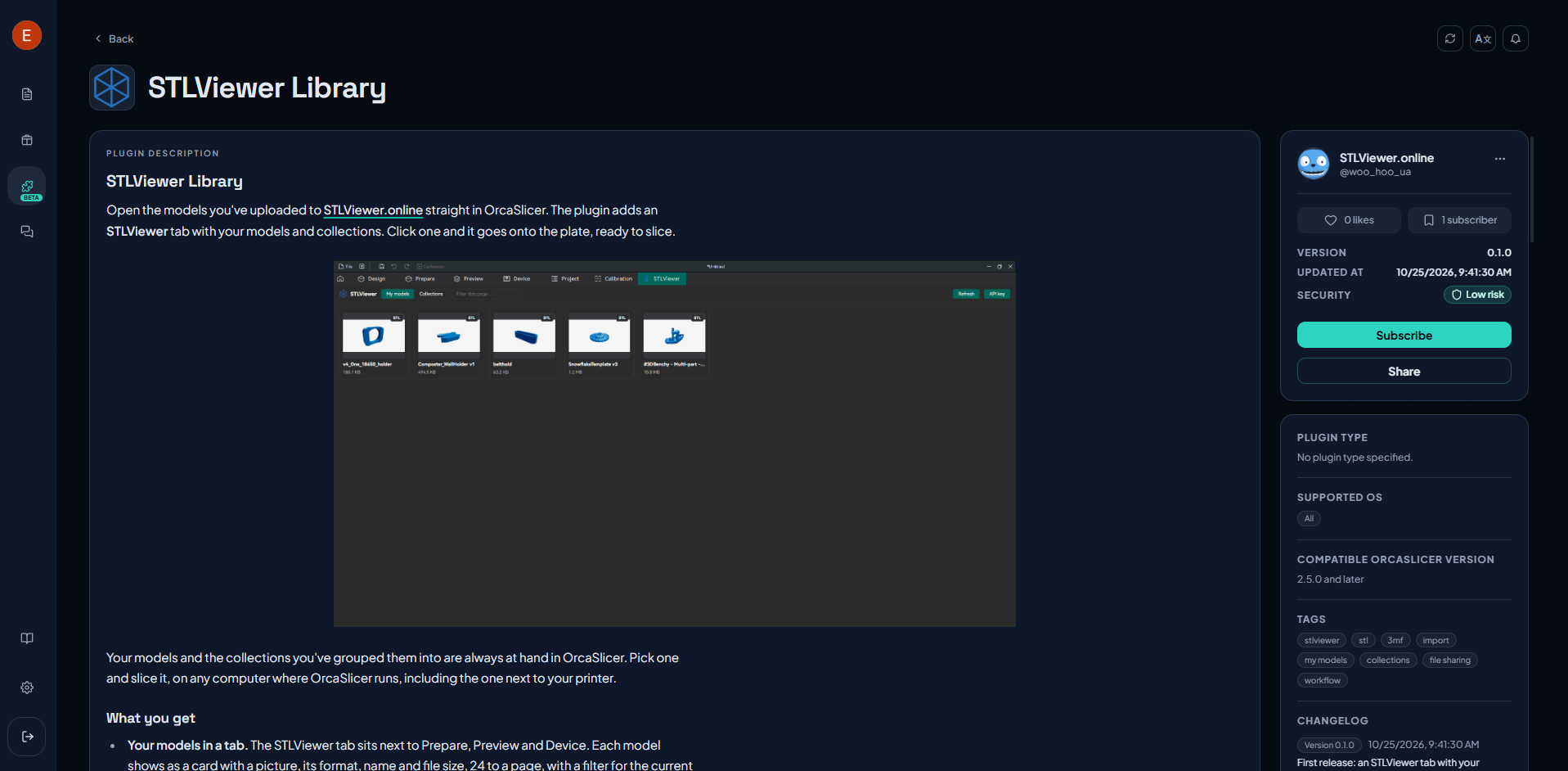
Only install plugins from sources you trust. STLViewer Library is the official plugin from stlviewer.online, and its details show STLViewer as the author.
You can also get to the Plugin Hub from inside OrcaSlicer: the Browse plugins button in the Plugins window (see Step 2) takes you to the same place.
Step 2 — Install and switch it on in OrcaSlicer
- Open OrcaSlicer and make sure it's signed in to the same OrcaCloud account you used on the Plugin Hub.
- Open the Plugins window: click the menu button with three lines next to File and choose Plugins. On a Mac, choose File > Plugins in the menu bar. STLViewer Library is in the list, marked Subscribed. If you don't see it yet, click Refresh.
- The row may also say Not installed and Inactive. That's normal. Tick the Activate box on the STLViewer Library row.
- Wait a few seconds while OrcaSlicer downloads and installs the plugin. The status changes to Activated.
- Close the Plugins window.
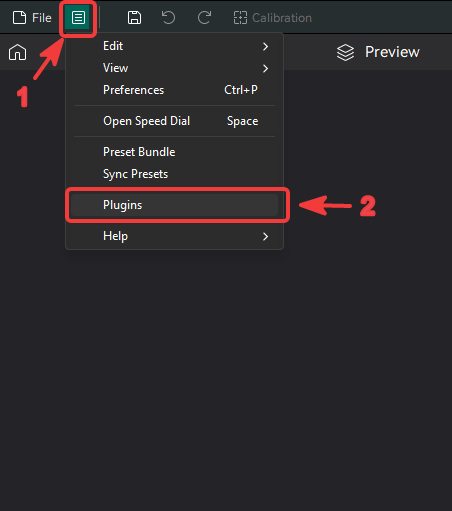
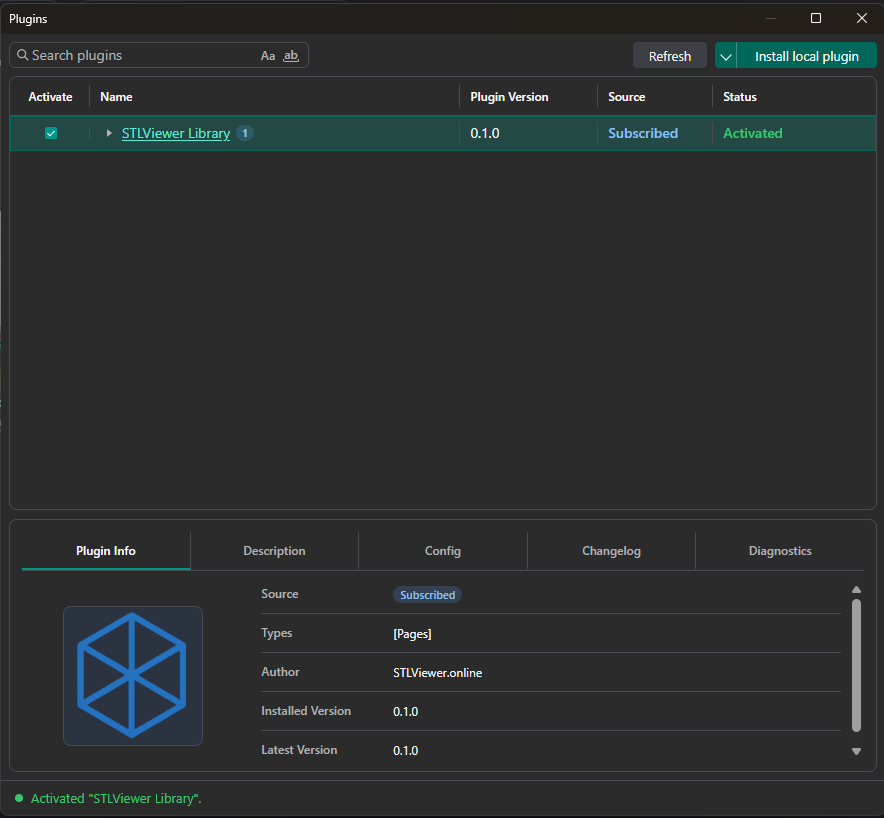
A new STLViewer tab now sits at the top of OrcaSlicer, next to Prepare, Preview and Device.
If the status says Error instead, select the plugin and open the Diagnostics tab at the bottom of the window to see why. The troubleshooting section at the end of this guide covers the usual causes.
Step 3 — Create an API key on STLViewer
The plugin proves it's allowed to see your models with an API key, a long code that works like a password made for one app. The key gives the plugin access to your models, but it can't change your account settings, and you can cancel it at any time without touching your real password.
- Sign in on stlviewer.online and open your Profile page.
- Scroll down to the API Keys card.
- Type a name you'll recognise later, such as
OrcaSlicer, and click Create key. - A highlighted box appears with the message "Copy this key now — it will not be shown again." Click the Plain key tab in that box. The box opens on the Claude Code tab, which wraps the key in extra text the plugin can't use.
- Click Copy.
- Leave this page open until you've pasted the key in the next step. Then click Done — hide the key.
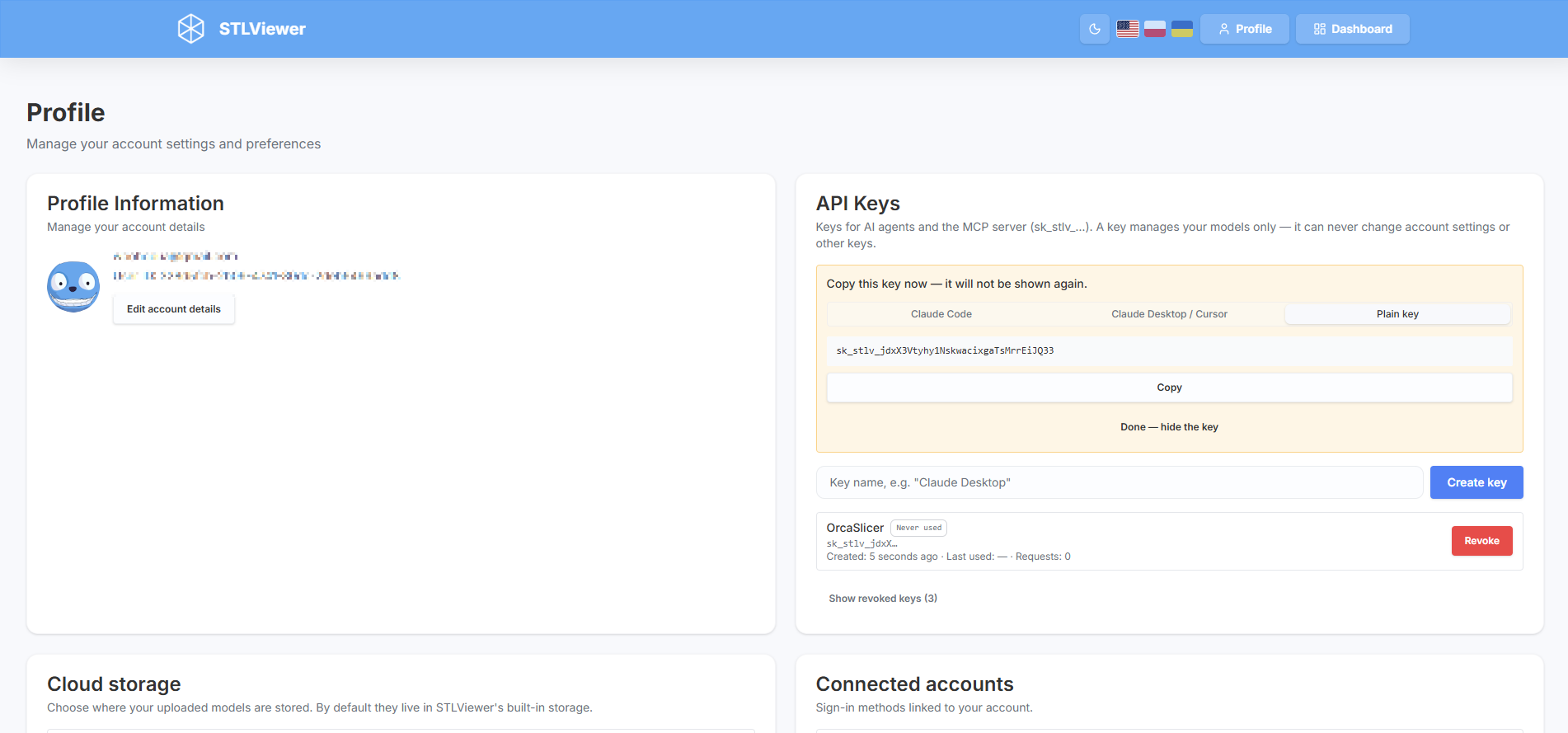
Your key starts with sk_stlv_. Treat it like a password: don't post it in forums or screenshots, and give OrcaSlicer its own key instead of reusing one you made for something else. That way you can cancel it later without breaking anything else.
If you closed the box before copying the key, don't worry. Create another key, and revoke the one you didn't copy.
Step 4 — Connect the plugin to your account
- In OrcaSlicer, click the STLViewer tab. The first time, it shows Connect your STLViewer account.
- Click in the key field and paste your key (Ctrl+V on Windows and Linux, Cmd+V on a Mac). It appears as dots, like a password.
- Click Save key, or press Enter.
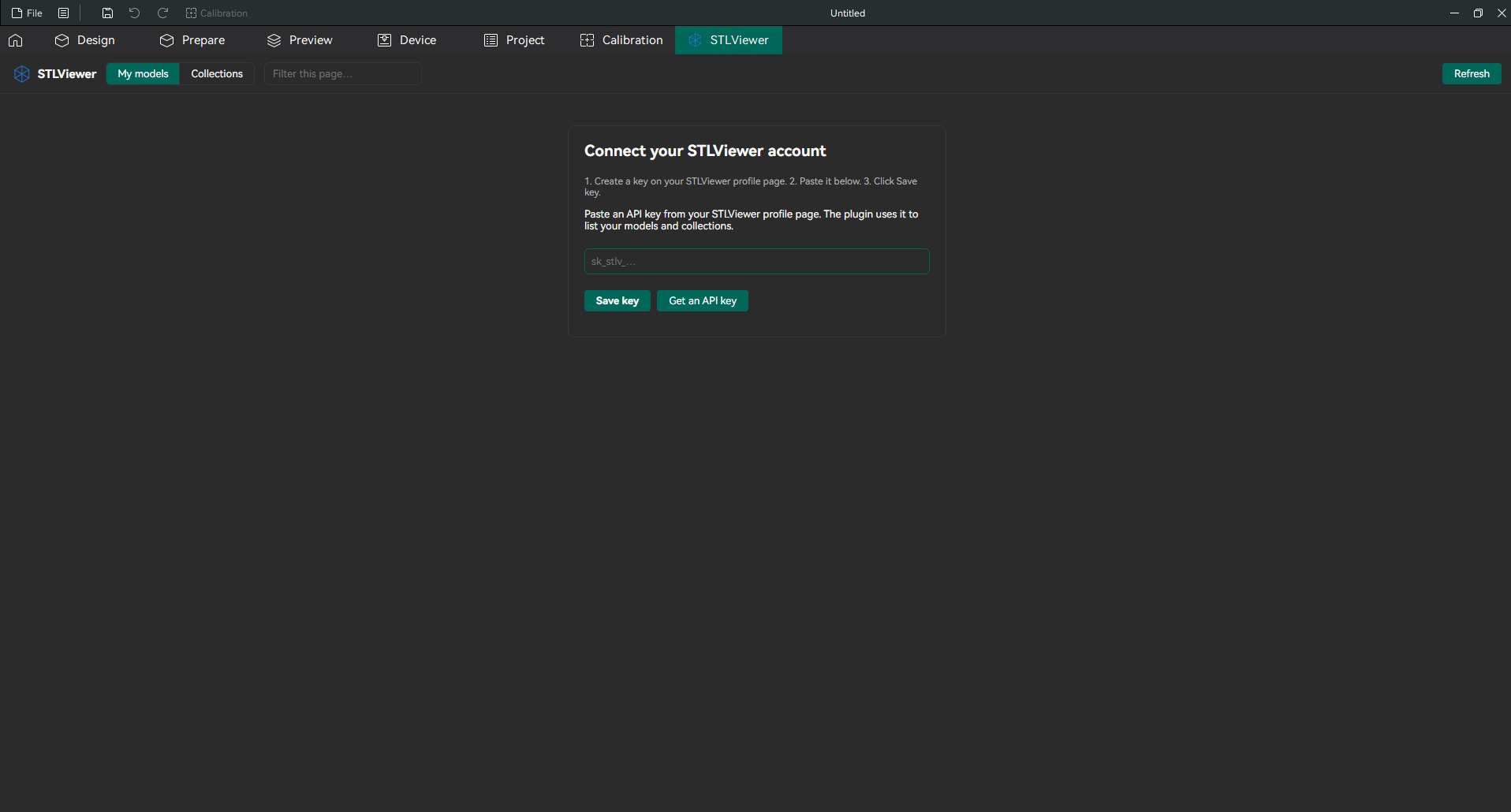
The Get an API key button on the same form opens your STLViewer profile page in your web browser, in case you skipped Step 3.
Answer the permission question with Yes. The first time the tab loads something, OrcaSlicer asks whether the STLViewer plugin may start a background task (OrcaSlicer calls it a thread). Click Yes. The plugin downloads files in the background so that OrcaSlicer doesn't freeze while a big model arrives. OrcaSlicer remembers your answer, so you won't see the question again unless the plugin is updated or reinstalled.
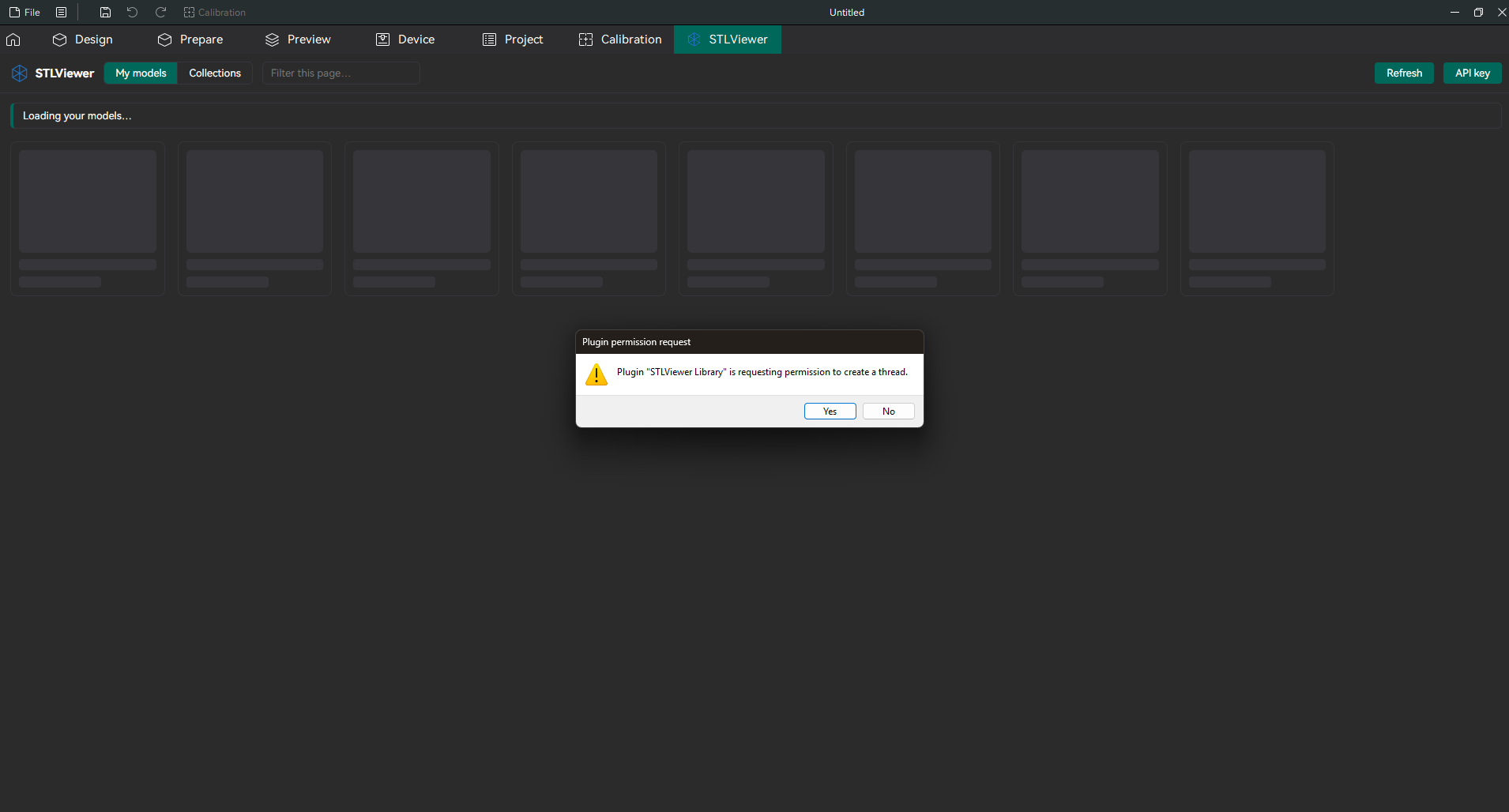
If you click No by accident, the tab says "OrcaSlicer blocked the STLViewer plugin." Click Refresh at the top of the tab and answer Yes this time.
Once the key is saved, your models appear in the tab.
Step 5 — Keep everything in one OrcaSlicer window (Linux and Mac)
On Windows you can skip this step: the plugin puts every model on the plate of the OrcaSlicer window you're using.
On Linux, OrcaSlicer has a setting that controls what happens when another program asks it to open a file. With the setting off, every model you open from the STLViewer tab starts a second OrcaSlicer window. With it on, the model goes onto the plate in the window you already have open.
- Open OrcaSlicer's Preferences: choose it in the menu next to File, or press Ctrl+P. On a Mac, press Cmd+,.
- In the General section, tick Allow only one OrcaSlicer instance.
- Close Preferences.
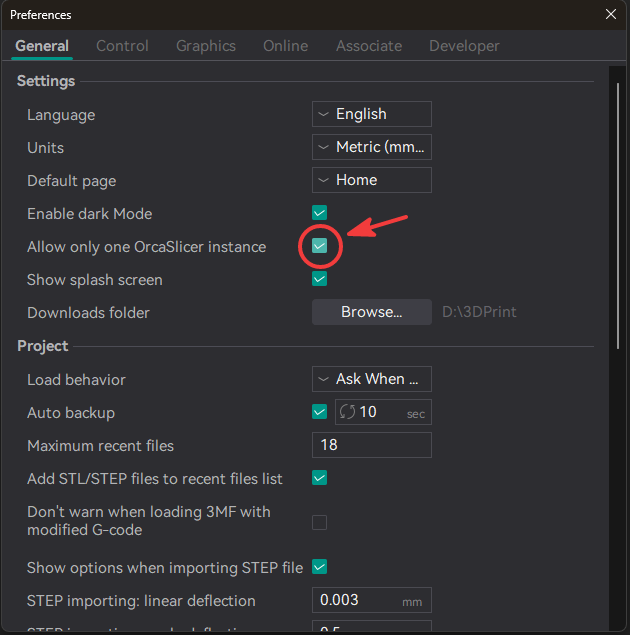
On a Mac, STL files always open in the window you already have, and the setting only matters for 3MF files: with it off, each 3MF file you open starts a second OrcaSlicer window.
Setup is done, and from now on the STLViewer tab is ready whenever you open OrcaSlicer.
Using the plugin
Browse your models
My models shows the models you've uploaded to your account, newest first, 24 to a page. These are the models from your dashboard on stlviewer.online that haven't expired yet. Use Previous and Next at the bottom to move between pages.
Each card shows:
- a picture of the model, or a grey box with the format name if there's no picture
- a format label in the corner: STL, 3MF or PLY
- the model's name and file size
When a model reaches the end of the storage period you chose for it, it disappears from the tab, just as its share link stops working.
To find a model, type in the Filter this page… box at the top. It narrows down the cards on the current page by name. It doesn't search your other pages, so if the model is older, go to the next page and filter again.
To see a model you've just uploaded, click Refresh at the top of the tab. The tab doesn't update by itself.
Open a model in OrcaSlicer
- Point at a model card. It shows Open in OrcaSlicer.
- Click the card. It changes to Opening…, and a status line at the top of the tab shows the progress, for example "Downloading bracket.stl… 45%", then "Opening in OrcaSlicer…".
- The model appears on the plate. If you're still looking at the STLViewer tab, click Prepare to see it.
When it's done, the status line says "Sent “model name” to OrcaSlicer." On Linux and Mac it also reminds you about the one-window setting from Step 5, in case a second window opened.
Good to know:
- Opening the same file again is instant. The plugin keeps a copy of each file on your computer, so the second time there's nothing to download.
- OrcaSlicer may ask how to open a 3MF file. You can open it as a project or import only the geometry. Opening it as a project also loads the printer and filament settings saved in the file. Importing only the geometry keeps your current settings, which is usually what you want when the file was saved for a different printer.
- Your download setting doesn't get in the way. You may have turned off downloads so that the people you share a model with can only look at it. You can still open the model from the plugin, because it's yours. Opening it doesn't add to its download count either, so the count still shows how often other people downloaded it.
- You can keep browsing while a model downloads. Switching to Collections or to another page doesn't cancel the download.
Models with more than one file
Some models have several files, for example a box and its lid. When you click such a model, the plugin asks which file to open: "“Model name” has 3 files. Which one should open?"
- Click Open next to the file you want.
- Or click Open all to put every file on the plate at once.
- Or click Cancel to go back.
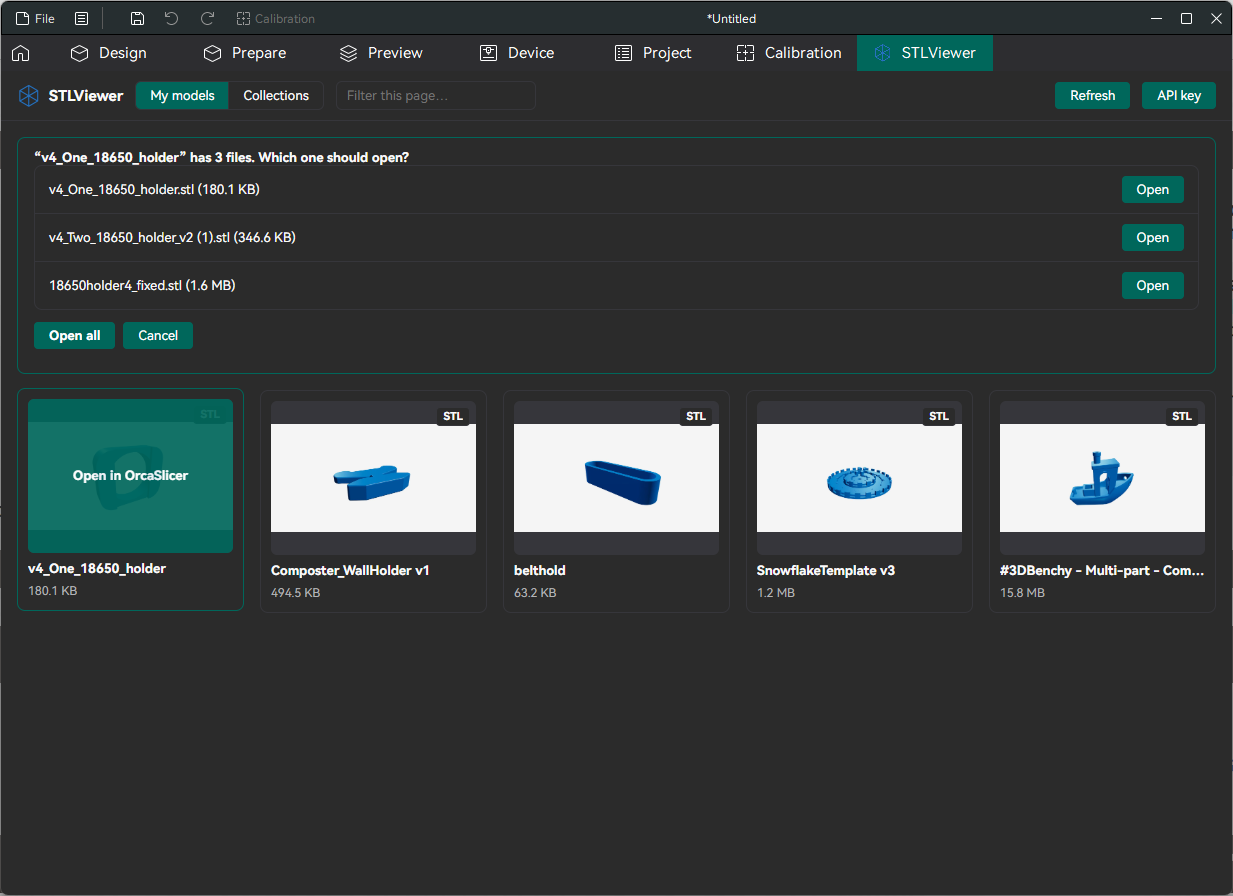
The chooser only lists STL and 3MF files, because those are the ones OrcaSlicer can open.
Browse your collections
Click Collections at the top of the tab to see the collections you've put together, for example all the parts of one project. Each card shows the collection's name and how many models it holds. Click a card to see its models, and open them just like on My models. The ← button next to the collection's name takes you back to the list of collections.
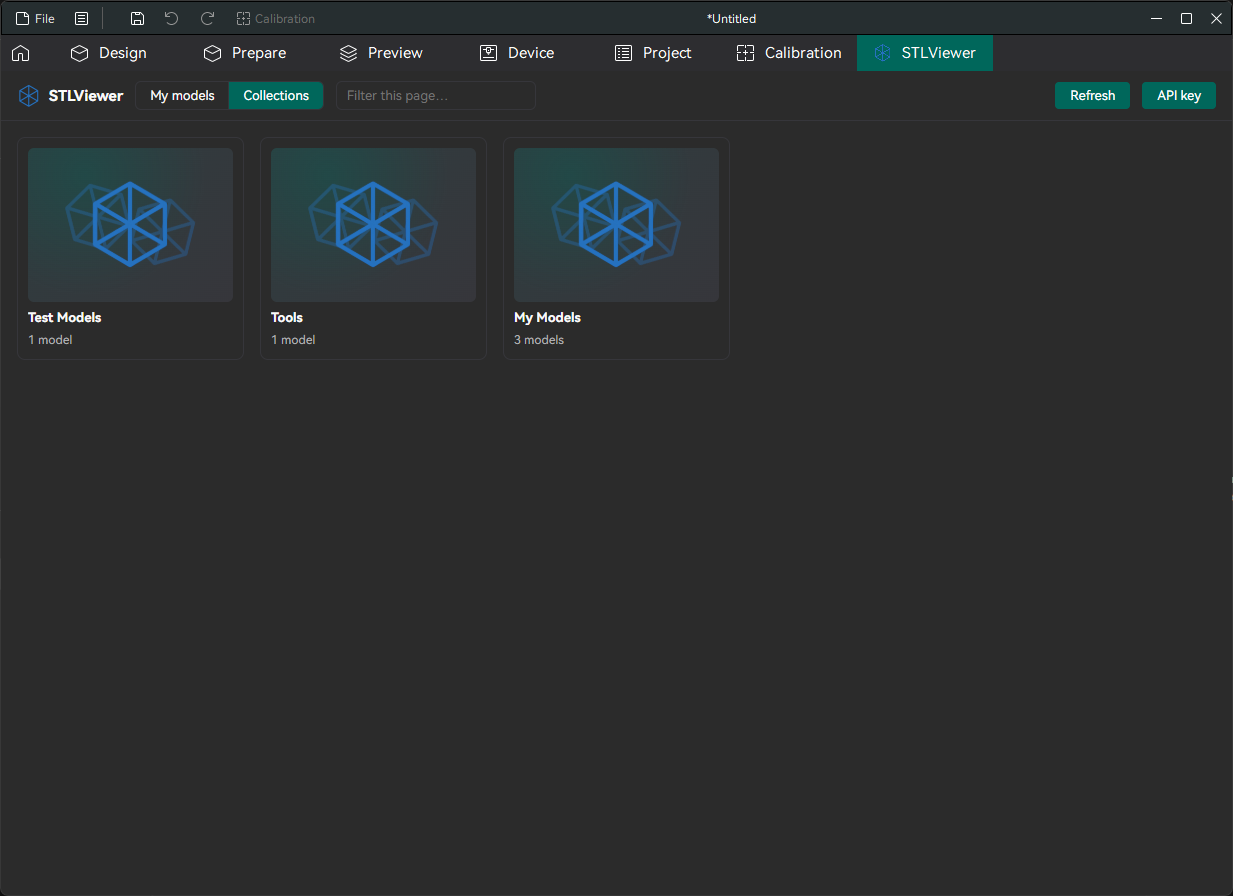
You create collections and choose what goes into them on stlviewer.online. The plugin shows them but doesn't change them, so the people you shared a collection with see it exactly as before.
PLY files
OrcaSlicer can't import PLY files, so the plugin can't open them either. PLY models still appear in the list with a PLY label, but clicking one shows "“model name” has no STL or 3MF file, so OrcaSlicer can't open it." To print such a model, export it as STL or 3MF from the program that made it, and upload that file.
Your API key and privacy
- Where the key is kept. The plugin saves your key in OrcaSlicer's plugin settings on your computer. Like all OrcaSlicer plugin settings, it isn't encrypted. Anyone who can open your OrcaSlicer settings folder could read it, which is one more reason to give OrcaSlicer its own key.
- Where the key goes. The plugin sends the key only to STLViewer. Model files are fetched through short-lived download links that don't contain your key.
- What the plugin does with it. It lists your models and collections and downloads the files you open. It never changes or deletes anything in your account.
To change or remove the key in OrcaSlicer, click API key at the top of the STLViewer tab. The form shows the first few characters of the connected key. Paste a new key and click Save key to replace it, or click Disconnect to remove it from OrcaSlicer. Click Back (or press Esc) to return to your models.
To cancel the key for good, open your Profile page, find the key in the API Keys card and click Revoke, then Revoke key. The key stops working right away. The next time the plugin loads something, it shows the connect form again and asks for a new key. Revoke the key when you stop using a computer, or if you think someone else has seen it.
Updating and removing the plugin
Updates. When a new version of STLViewer Library comes out on the Plugin Hub, open the Plugins window and select the plugin. Its details show an Update button. Click it and wait until it finishes. After an update OrcaSlicer forgets the plugin's permissions, so it asks the permission question from Step 4 again. Click Yes.
Switching it off for a while. Untick Activate in the Plugins window. The STLViewer tab disappears until you tick the box again.
Removing it. In the Plugins window, right-click STLViewer Library and choose Unsubscribe. This removes the plugin from your computer and cancels the subscription. Delete removes the plugin from this computer but keeps the subscription, so you can install it again later without going back to the Plugin Hub. Removing the plugin also deletes the model files it downloaded. If you won't use it again, revoke its API key on your profile page too.
Settings for advanced users
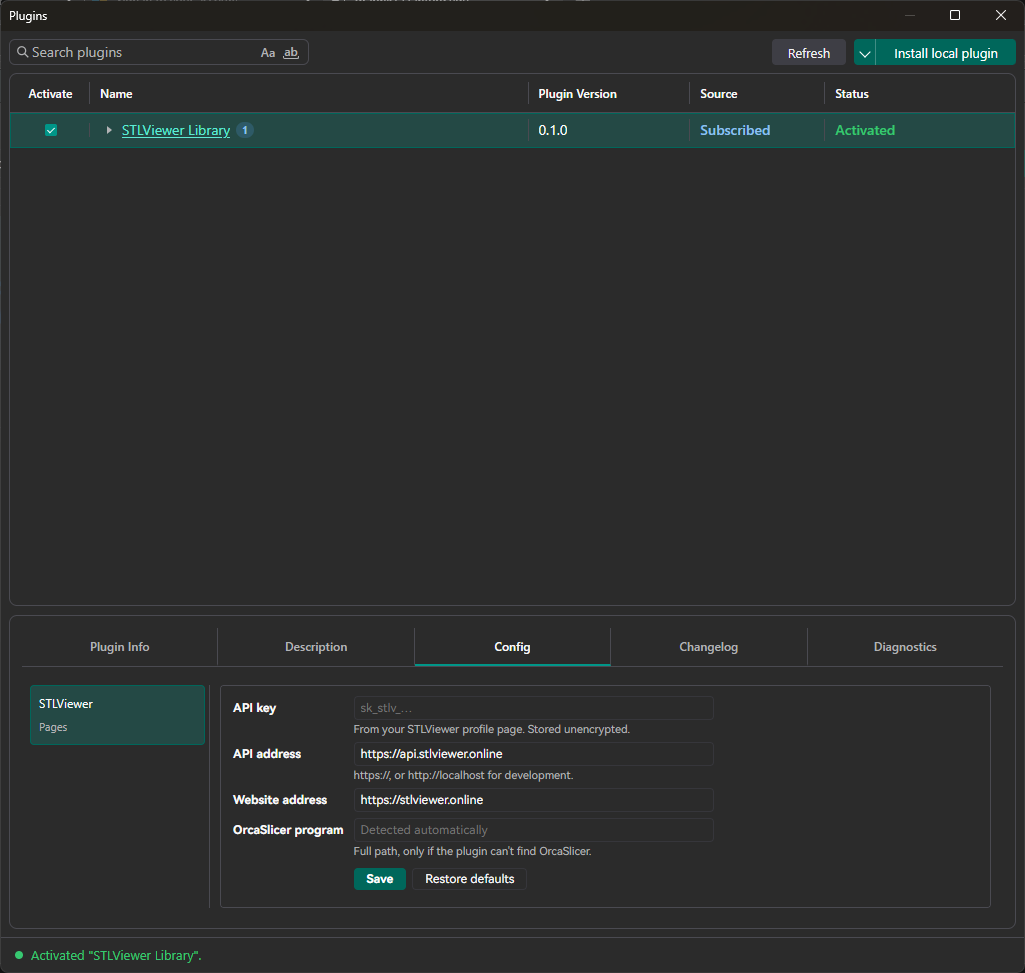
Most people never need this section. To see the plugin's settings, open the Plugins window, select STLViewer Library and open the Config tab.
| Setting | What it's for |
|---|---|
| API key | The key from Step 3. It's easier to change it from the STLViewer tab. |
| API address | Where the plugin finds STLViewer. Leave it as it is. |
| Website address | Used by the Get an API key button. Leave it as it is. |
| OrcaSlicer program | Empty by default, because the plugin finds OrcaSlicer by itself. Fill it in only if you see "Couldn't find the OrcaSlicer program" (see Troubleshooting below). |
Click Save after a change. Restore defaults undoes all your changes, and also removes your saved key.
Troubleshooting
There's no Plugins item in the menu. If the menu button next to File (the File menu on a Mac) has no Plugins item, your OrcaSlicer version is too old for plugins. Install a release newer than 2.4.2, or a nightly build.
The Plugin Hub only shows a sign-in page. That's expected: the Hub opens once you sign in to OrcaCloud. Create an account there if you don't have one.
I can't find STLViewer Library in the Plugins window. Check that OrcaSlicer is signed in to the same OrcaCloud account you subscribed with on the Plugin Hub, then click Refresh in the Plugins window.
The STLViewer tab doesn't appear. Open the Plugins window and check that Activate is ticked and the status says Activated. If it says Error, the Diagnostics tab explains why. Unticking Activate clears the error; tick it again to retry.
"That doesn't look like an STLViewer API key. Keys start with sk_stlv_." What you pasted isn't just the key. Usually it was copied from the Claude Code or Claude Desktop / Cursor tab, which add extra text around the key. Go back to Step 3, choose Plain key and copy again. If you've already closed the box, create a new key.
"STLViewer didn't accept this API key." The key was revoked, or part of it got lost while copying. Create a new key on your profile page and paste it in.
"OrcaSlicer blocked the STLViewer plugin." OrcaSlicer's permission question was answered No. Click Refresh and answer Yes.
Every model opens in a new OrcaSlicer window. Turn on Allow only one OrcaSlicer instance (Step 5). On Windows the plugin normally avoids this by itself, but if it happens anyway, the same setting fixes it.
"Couldn't find the OrcaSlicer program." The plugin couldn't work out where OrcaSlicer is installed. Open the Plugins window, select STLViewer Library, open the Config tab, enter the full path of the OrcaSlicer program in OrcaSlicer program, and click Save:
- Windows: usually
C:\Program Files\OrcaSlicer\orca-slicer.exe. To find it, right-click your OrcaSlicer shortcut and choose Open file location. Then hold Shift, right-clickorca-slicer.exeand choose Copy as path. The quotes that come with it are fine. - Mac:
/Applications/OrcaSlicer.app - Linux: the path of the AppImage file you start OrcaSlicer from
"“model name” has no STL or 3MF file, so OrcaSlicer can't open it." The model only has files OrcaSlicer can't import, such as PLY. See "PLY files" above.
"This model is no longer available on STLViewer. Refresh the list." The model expired or was deleted after the list loaded. Click Refresh.
"Can't reach STLViewer… Check your internet connection." OrcaSlicer couldn't connect to STLViewer. Check your internet connection. If a firewall or antivirus program controls which apps can go online, allow OrcaSlicer.
"STLViewer is busy right now. Wait a minute and try again." Too many requests arrived in a short time. Wait a minute, then click Refresh.
"The download was interrupted. Try again." The connection dropped before the whole file arrived, so nothing was opened. Click the model again.
"Couldn't load this list." Something went wrong while loading. The status line above the list says what, and Refresh tries again.
A message mentioning CERTIFICATE_VERIFY_FAILED. A part the plugin needs for secure connections is missing. In the Plugins window, right-click STLViewer Library and choose Reinstall. OrcaSlicer asks the permission question again afterwards.
"Something went wrong in the STLViewer plugin." The details are written to OrcaSlicer's log. Choose Help > Show Configuration Folder (Help is in the menu next to File, or in the menu bar on a Mac), open the log folder and find the newest file whose name starts with python_. Include that file when you report the problem.
A model shows a grey box instead of a picture. The model has no preview image, or the image couldn't be loaded. It doesn't affect opening the model.
Frequently asked questions
Is the OrcaSlicer plugin free?
Yes. The plugin is free, and every STLViewer account can create API keys.
Why do I need an OrcaCloud account?
OrcaSlicer installs and updates plugins from the OrcaCloud Plugin Hub, so subscribing there is how the plugin gets into OrcaSlicer. It's the same account OrcaSlicer uses to sync your printer, filament and process profiles.
Do I need an STLViewer account to use the plugin?
Yes. The plugin shows the models you've uploaded to your own account and needs an API key to reach them, which you create while signed in. If someone shared a model with you, you don't need the plugin: use the "Open in OrcaSlicer" button on the model page they sent you. That button appears when the owner allows downloads.
Can the plugin change or delete my models?
No. The plugin only lists your models and collections and downloads the files you open. It never edits, moves or deletes anything in your STLViewer account, and your share links keep working as before.
Which file formats can I open?
STL and 3MF. PLY models appear in the list but can't be opened, because OrcaSlicer doesn't import PLY files.
Does opening a model from OrcaSlicer count as a download?
No. Opening your own model from the plugin doesn't add to its download count, so the count still shows how often the people you shared it with downloaded it. It also works when you've turned off downloads for them.
Where are the downloaded files kept, and will they fill up my disk?
In a downloads folder that belongs to the plugin, inside OrcaSlicer's settings folder. Files you haven't opened for 30 days are deleted automatically, and removing the plugin deletes the whole folder.
Is it safe to keep my API key in OrcaSlicer?
The key is stored on your computer without encryption, like all OrcaSlicer plugin settings. Create a separate key just for OrcaSlicer, keep it private, and revoke it on your profile page if you stop using that computer or think someone else has seen it.
Can I search all my models from OrcaSlicer?
Not at the moment. The filter box searches the names on the current page, which holds 24 models. To find an older model, go to the next page and filter again.
Does the plugin work on Windows, macOS and Linux?
It's built for all three, in any OrcaSlicer version that includes the plugin system. On Windows, models always open in the window you already have. On Linux, turn on "Allow only one OrcaSlicer instance" for that. On a Mac that setting only matters for 3MF files.